
For one 4K stream, plan around a stable 25 Mbps available at the playback device, then add bandwidth for every other simultaneous activity. The FCC lists 25 Mbps as an approximate Ultra HD 4K reference, while individual services may publish lower or different recommendations because codecs and content vary. A household target must include multiple screens, calls, downloads, Wi-Fi losses, and a safety margin.streaming app buffering
The correct number is not simply the internet plan printed on a bill. Measure what reaches the television at the time and place where streaming occurs.
Table of Contents
Table of Contents
Internet Speed Recommendations at a Glance
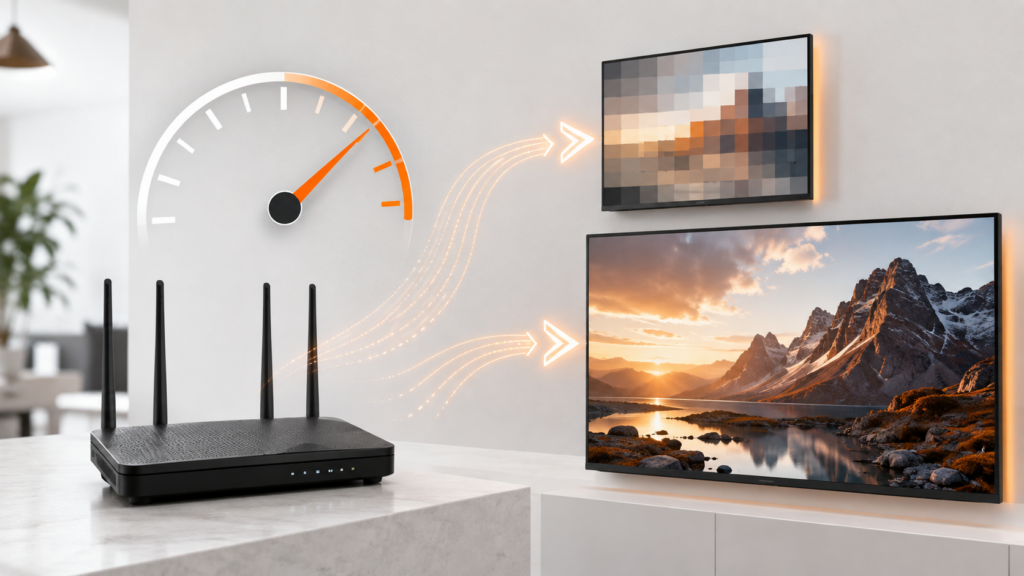
| Viewing quality | FCC approximate reference | Practical planning note |
|---|---|---|
| Standard definition | 3–4 Mbps | Allow extra for household activity |
| High definition | 5–8 Mbps | Use the higher end for planning |
| Ultra HD 4K | 25 Mbps | Per active 4K screen |
Netflix currently publishes examples of 3 Mbps for 720p HD, 5 Mbps for 1080p full HD, and 15 Mbps for 4K on its own service. The difference from FCC references illustrates why bitrate, compression, content, and service design matter.
“Use the provider’s requirement for compatibility and a household margin for reliability.”
Do not interpret either table as a universal guarantee. Live content, high frame rates, HDR, less efficient compression, or variable source delivery can require different conditions.
Understand Speed, Bandwidth, and Bitrate
Internet speed usually describes how much data a connection can transfer per second. Bandwidth is the capacity shared among current activities, while video bitrate is the data rate used by a particular stream.
A 4K title does not always use the same bitrate. Compression format, frame rate, HDR, scene complexity, and the operator’s encoding settings change demand from moment to moment.
| Term | Meaning in a home setup |
|---|---|
| Plan speed | Service tier purchased from the ISP |
| Measured speed | Result reaching a device at a particular moment |
| Available bandwidth | Capacity left after other household activity |
| Video bitrate | Data consumed by the current stream |
| Throughput stability | How consistently usable data arrives |
| Latency and packet loss | Delivery quality factors beyond raw speed |
Calculate Internet Speed for 4K Streaming
Start with the maximum number of simultaneous screens and the quality each screen normally uses. Add the reference demand, include other important traffic, then add a margin for variation.
Household Planning Formula
Target available speed = simultaneous stream demand + other active use + reliability margin.
- Count simultaneous HD and 4K screens.
- Multiply 4K screens by the chosen per-stream planning number.
- Add HD screens using the appropriate service or FCC range.
- Add video calls, game downloads, backups, and other recurring traffic.
- Add a reasonable margin for Wi-Fi and normal variation.
A margin is not a fixed universal percentage. Homes with Ethernet and stable fiber may need less extra capacity than homes with distant Wi-Fi, variable fixed wireless, or heavy evening congestion.
Work Through Real Household Examples
| Household pattern | Base streaming estimate | What to add |
|---|---|---|
| One HD screen | About 5–8 Mbps | Other apps and stability margin |
| One 4K screen | About 25 Mbps | Background and Wi-Fi margin |
| One 4K + one HD | About 30–33 Mbps | Calls, downloads, and margin |
| Two 4K screens | About 50 Mbps | Remaining household use |
| Two HD + one 4K | About 35–41 Mbps | Other activity and variation |
These are planning examples, not promises. If one service recommends a specific number for its 4K format, follow that requirement for the service and still account for the rest of the home.
A nominal 50 Mbps plan may be tight for two simultaneous 4K streams once Wi-Fi losses and other tasks are included. A nominal 100 Mbps plan can still perform poorly at a distant TV if the local signal is unstable.
Measure Speed Where the Stream Plays
Test on the television or external player when the platform provides a trusted speed-test app. If that is impossible, test a phone or laptop beside the TV and note that its wireless hardware may differ.
- Test at the normal viewing time.
- Run three measurements several minutes apart.
- Record the lowest and median results.
- Repeat while typical household activity is running.
- Compare Wi-Fi with Ethernet when possible.
- Repeat after moving or restarting the router.
Do not test only beside the router. The relevant performance is what reaches the playback device in its real location.
Look for large swings, not only a low average. A connection that moves between 10 and 150 Mbps may cause more trouble than one that remains near 40 Mbps for a single 4K stream.
Account for Wi-Fi Loss and Interference
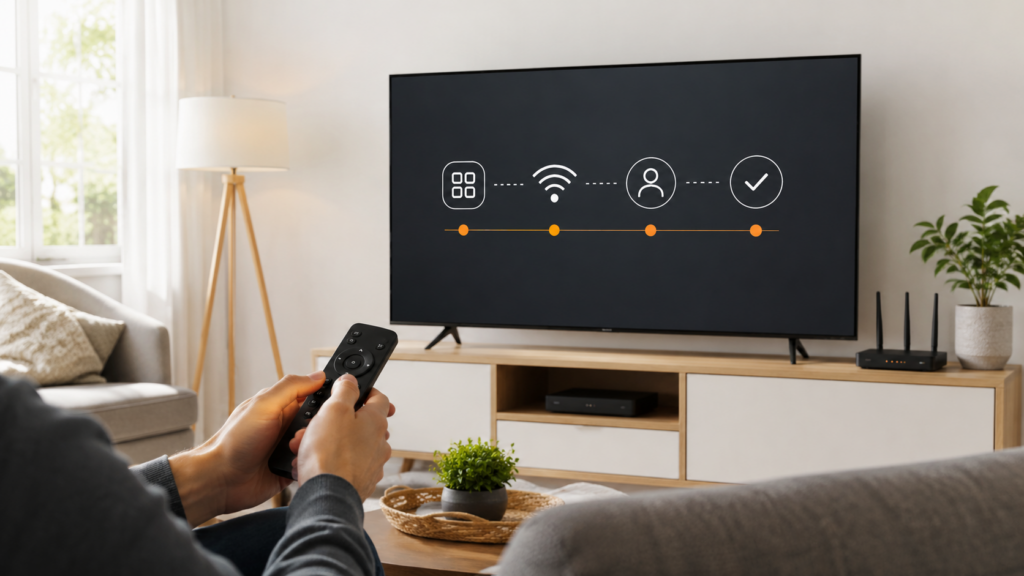
Wi-Fi speed falls with distance, walls, interference, crowded channels, older radios, and poor router placement. The internet plan may deliver full speed to the router while the television receives only a fraction.
- Place the router centrally and in the open.
- Keep it away from metal cabinets and large appliances.
- Use higher-frequency bands at shorter range.
- Use 2.4 GHz when reach matters more than maximum speed.
- Position mesh nodes where the backhaul signal is strong.
- Update router firmware through the official administration interface.
A full Wi-Fi signal icon does not reveal packet loss, interference, or available household capacity. Use repeat tests and actual playback at the target quality.
Use Ethernet as a Diagnostic Baseline
Ethernet provides a stable comparison that removes wireless radio conditions. Connect the TV or streaming device directly to the router and repeat the same test and same 4K title.
| Outcome | Likely conclusion |
|---|---|
| Ethernet fixes buffering | Improve Wi-Fi or retain the cable |
| Both links are slow | Check ISP service, router, or wider route |
| Speed is good but one stream fails | Investigate source-specific delivery |
| Phone works but TV fails on Ethernet | Inspect TV app, storage, and decoder |
Some TVs contain 100 Mbps Ethernet ports, which remain sufficient for typical compressed 4K streaming even though the number is lower than modern Wi-Fi link rates. Stability matters more than a large theoretical link number.
Use an adapter only when it is officially compatible with the external device. An unsupported USB adapter may create its own reliability problem.
Include Upload Traffic and Router Load
Viewers primarily use download capacity, but a saturated upload can increase delay and disrupt network responsiveness. Cloud photo backups, security cameras, large file uploads, and video calls are common examples.
Pause heavy uploads for a short controlled test. If playback improves, schedule them outside peak viewing or use router traffic-management features that you understand.
- Check the router’s active-client list.
- Look for automatic console or computer updates.
- Review camera upload schedules.
- Pause cloud backups during comparison tests.
- Secure the Wi-Fi network against unknown users.
A newer router may handle many simultaneous connections more efficiently than an older entry-level model. Upgrade hardware only after tests show that it is the bottleneck.
Distinguish Network Speed from Device Performance
A device must decrypt, decode, and render the video after data arrives. An older Smart TV may report enough speed but still struggle with a codec, 4K resolution, HDR format, or high frame rate.
| Symptom | Network possibility | Device possibility |
|---|---|---|
| Quality drops automatically | Available bandwidth varies | App chooses a safer format |
| App freezes while menus lag | Not primarily a speed symptom | Low memory or storage |
| HD works, 4K fails | Insufficient stable capacity | Decoder or format limitation |
| Another device works on same link | Network likely adequate | TV or app needs attention |
Update the device, free storage, clear cache, and compare a supported external player. Do not purchase a faster internet tier until the playback hardware has been separated from the network diagnosis.
Diagnose Live Streaming Separately
Live streams have less opportunity to build a large buffer because the viewer stays close to the current moment. Short delivery interruptions may therefore become visible more quickly than during on-demand playback.
- Test another live stream and one on-demand title.
- Record whether failure occurs at a predictable busy time.
- Compare HD and 4K versions when both are legitimately available.
- Test the same stream on a second supported device.
- Report source-specific failure with the exact time and region.
When every app buffers, investigate the home network and ISP. When only one live source buffers while other content remains stable, provider or delivery-side investigation becomes more appropriate.
The streaming app buffering checklist provides a full source-to-device diagnostic order.
Internet Speed Case Study
A household buys a 300 Mbps internet plan but its bedroom TV buffers in 4K. A speed test on a phone beside the router reaches 290 Mbps, while a test beside the bedroom TV varies between 12 and 70 Mbps.
The family moves a mesh node from the bedroom dead zone to the hallway, where it receives a stronger backhaul signal. The TV then measures a stable 65 Mbps during normal evening activity and streams the same 4K title reliably.
The internet plan was never the primary limit. Router placement and Wi-Fi stability determined how much of the purchased speed reached the screen.
In a second case, Ethernet delivers 200 Mbps to the TV but one live feed buffers while other 4K titles work. The user documents the exact feed and time for provider support instead of upgrading the internet plan.
Choose an Internet Tier Without Overbuying
List peak simultaneous activities and calculate a realistic range. Compare that range with the ISP’s typical performance, data allowance, equipment, contract, and price after promotions.
- Do not buy gigabit service solely for one 4K television.
- Do not assume the lowest plan supports a busy multi-screen household.
- Check upload speed when calls, cameras, or backups matter.
- Verify data caps if the household streams for many hours.
- Use Ethernet or good mesh placement before paying for more speed.
- Review actual usage and performance after installation.
A well-sized plan provides enough stable capacity with a reasonable margin. Money spent on proper router placement or a wired link can produce a larger improvement than paying for unused top-line speed.
Understand Data Usage for HD and 4K
Speed measures how quickly data moves, while data usage measures how much transfers over time. A household can have enough speed for 4K and still face an internet plan with a monthly data allowance.
Actual consumption varies by codec, quality setting, frame rate, and service. Use the service’s published estimate or the ISP usage meter instead of assuming every 4K hour consumes the same amount.
Monthly Usage Planning
- Estimate daily viewing hours for each screen.
- Separate HD and 4K hours.
- Use the service’s current per-hour estimate when available.
- Add downloads, games, updates, backups, and calls.
- Compare the total with the ISP allowance and overage policy.
Automatic quality can lower usage when conditions vary, while forcing the highest quality can increase both demand and monthly consumption. Downloads also count when the file is transferred, even if it is watched later offline.
Interpret Speed Tests Correctly
A speed test measures the route between a device and a selected test server, not the route to every streaming source. It is most useful for identifying local capacity and consistency.
| Result pattern | Possible interpretation |
|---|---|
| High beside router, low at TV | Wi-Fi placement or interference |
| Low on every device | ISP, modem, router, or heavy traffic |
| High test, one service buffers | Service route, source, or app-specific issue |
| Large variation between tests | Unstable signal or congestion |
| Ethernet stable, Wi-Fi variable | Wireless layer is the bottleneck |
Choose a nearby reputable server for the first baseline, then repeat rather than selecting only the best result. Record time, device, connection type, and active household tasks.
Speed-test latency is not the same as complete streaming quality, but unusually high or variable delay may indicate congestion that also affects startup and control responsiveness.
Prepare for Higher Frame Rates and HDR
Two streams labeled 4K can require different resources. Live 4K at a higher frame rate may place more demand on delivery and decoding than a highly compressed on-demand program.
- Verify that the service and specific title offer the format.
- Confirm the device and television support the resolution, frame rate, and HDR type.
- Use a compatible HDMI input and cable for external players.
- Test HD, standard 4K, and advanced formats separately.
- Check whether the player chooses quality automatically.
- Compare picture and sound before forcing advanced output.
If HD is stable and one advanced 4K format fails despite strong Ethernet speed, investigate device decoding, HDMI configuration, app support, and content format before upgrading internet service.
The screen’s information panel may reveal resolution or HDR but not the exact internet bitrate. Use it as format evidence, not a replacement for network measurement.
Review Modem, Router, and ISP Responsibilities
The modem or gateway connects the home to the internet service, while the router distributes that connection among wired and wireless devices. A combined ISP gateway performs both roles, which can make fault location less obvious.
- Confirm the equipment supports the purchased internet tier.
- Check official firmware and status information.
- Inspect Ethernet link rates and damaged cables.
- Compare a wired computer test with the television result.
- Record whether slowdowns affect all devices at the same time.
- Contact the ISP with dates, times, and wired measurements when the whole home is affected.
An ISP can investigate the access line and supplied equipment but usually cannot correct one application’s guide mapping or one provider’s stream source. The streaming provider cannot fix a weak Wi-Fi dead zone inside the home.
Assigning each layer to the correct team prevents repeated referrals. Evidence from Ethernet, multiple devices, and multiple services makes that assignment clearer.
Retest After Any Network Upgrade
After changing the internet tier, router, mesh placement, or cabling, repeat the original measurements at the same devices and normal viewing times. Compare stability and the lowest result, not only the new peak speed.
Then replay the same HD and 4K examples while typical household activity continues. An upgrade is successful when the real screen receives stable capacity and interruptions decrease, not merely when the ISP account page displays a larger number.
Keep the before-and-after results with the equipment model and configuration date. If performance later declines, the record helps identify whether a firmware update, placement change, added device, or ISP condition altered the setup.
Internet Speed for 4K Streaming Final Checklist
internet speed for 4K streaming: Quick Reference
- Check the streaming service’s current quality requirement.
- Use 25 Mbps as a conservative FCC 4K reference when planning.
- Count simultaneous HD and 4K screens.
- Add calls, downloads, uploads, cameras, and gaming.
- Include a margin for real-world variation.
- Measure at the playback device during normal use.
- Record the lowest and median results across several tests.
- Compare Wi-Fi with Ethernet.
- Improve router placement and reduce interference.
- Check device decoding, storage, and software.
- Separate one-source failure from whole-home failure.
- Choose the internet tier after the bottleneck is identified.
The right internet speed for 4K streaming is the stable capacity available to all active screens and household tasks, not one ideal speed-test result. Measure the real setup before upgrading the plan.
Frequently Asked Questions
Is 25 Mbps enough for 4K streaming?
It is the FCC’s approximate per-activity reference for 4K. A household needs extra capacity for simultaneous devices, Wi-Fi variation, and other internet use.
Why does Netflix list 15 Mbps for 4K?
Its recommendation reflects its own encoding and delivery. Requirements vary by service, codec, content, frame rate, and quality settings.
How much speed do two 4K TVs need?
Using a 25 Mbps planning reference, start around 50 Mbps for the two streams, then add other household activity and a reliability margin.
Does faster internet always stop buffering?
No. Buffering can come from Wi-Fi, the router, device performance, internet routing, or one stream source even when the internet tier is fast.
Is Ethernet better than Wi-Fi for 4K?
Ethernet is usually more consistent for a fixed screen and is an excellent diagnostic baseline. Good Wi-Fi can also support 4K with proper placement and capacity.
Why is my TV slower than my phone?
The devices may have different Wi-Fi radios, antennas, placement, software, and processing power. Test as close to the real playback device as possible.
Do upload speeds matter for watching video?
Viewing uses mostly download capacity, but a saturated upload from backups, cameras, or calls can increase delay and disrupt network performance.
Do more streaming connections require faster internet?
Usually yes when they play simultaneously. Add the bandwidth demand of each active screen and the rest of the household.